How to save time at work: 15 tips for project managers
As a project manager, your time doesn’t just belong to you. You’re managing your own workload while coordinating teams, chasing updates, running meetings, and fielding requests from stakeholders who all think their priority is the priority.
There are no real shortcuts in project work, but there are smarter habits. I’ve been managing projects for over 20 years and these are the time-saving approaches I actually use.
Some of these will be familiar. Others might be the nudge you need to finally do the thing you know you should be doing. Either way, I hope you find something useful here.
1. Call people before meetings
Give people a ring before a meeting. Ask them if they are still coming and if they have anything for the agenda. (Do you need a template for that? Grab a meeting agenda template here.)
If there are any decisions to be made, talk to them about the options and informally canvass their opinion on what they think is the right way forward.
This takes a little time but saves eons of time in the actual meeting, because you’ll be able to use the information you have gathered to head off conflict and bring the group to a decision far more quickly.
2. Trust your processes
You don’t want to worry about how to handle changes when they get raised. Or what to do to process an invoice. So set up processes for repetitive tasks.
The extra bonus benefit of having documented processes is that you can then hand the work off to someone else – they can follow the process steps just as well as you.
Common processes for project management include:
- Making decisions (yes, you can have a process for this!)
- Risk management
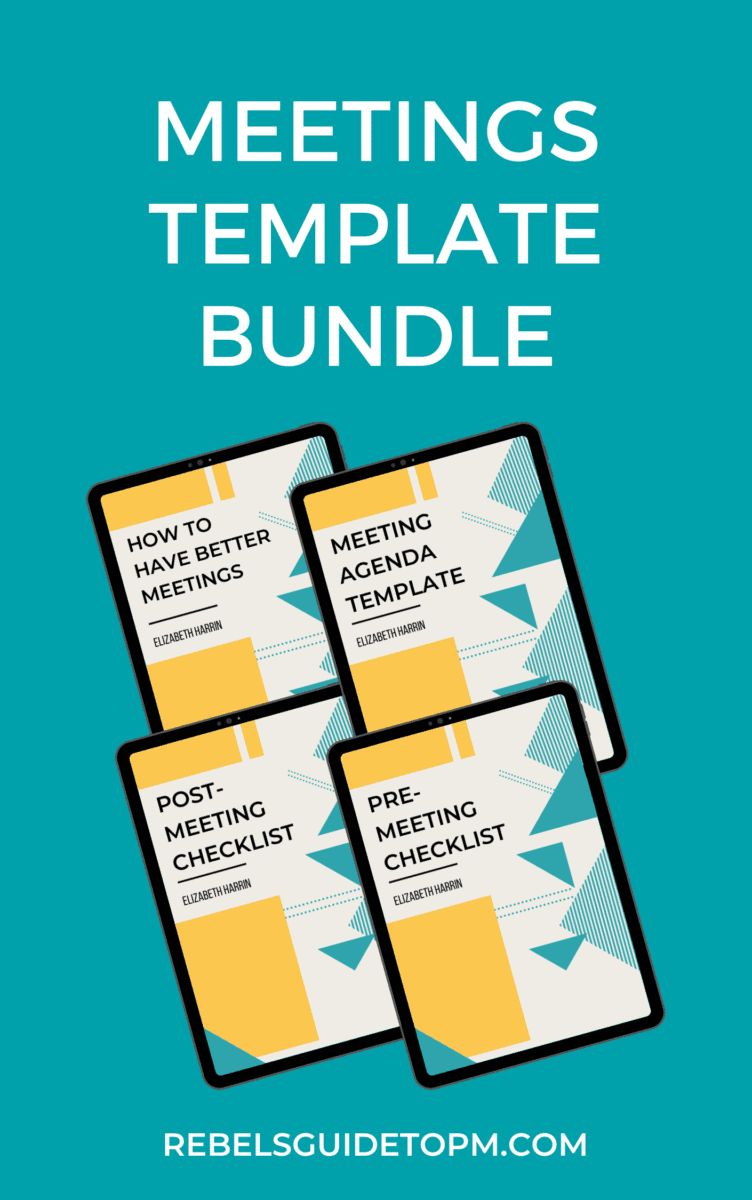
- Setting up a meeting (my bundle of meetings templates have a checklist for this process).
Even things like using a password manager app means you have a process for logging into the many software tools that project managers use throughout the day. Single sign on is a must-have!
3. Use templates
I never write a project document from scratch. There’s always something I can start from — whether it’s last month’s status report, a risk log from a previous project, or a stakeholder comms plan I’ve adapted a dozen times.
I’ll just say here: Don’t steal templates from one employer and use them at another employer. That is most likely against your contract of employment, and you don’t need to anyway, there are plenty of document templates available online.
Templates work for more than just documents, though. Think about your project management software: most tools let you save project structures, task lists, or board layouts as reusable templates. If you’re setting up a similar project for the third time and starting from scratch each time, that’s wasted time you could easily reclaim.
The same goes for emails. I have saved drafts for common messages — meeting invites, escalation nudges, end-of-stage summaries. I’m not sending identical emails, but having a starting point means I’m not staring at a blank screen either.
If you want ready-made templates to get started, my template shop has a range built specifically for project managers — including meeting templates, status report formats, and more.
Lean into generative AI
One more thing on templates: if you don’t have a starting point at all, AI tools like Copilot, ChatGPT or Claude can generate a first draft for you in seconds. Describe the document you need (“a project status report template for a construction project with a steering group audience”) and you’ll get something workable straight away. It won’t be perfect, but it’ll be 80% of the way there and it’s easier to start with that than a blank page.
I created a sample project charter for a learning exercise recently and I was impressed at how good the output was. I use Claude regularly now for documents I haven’t created before, or when I’m moving into something new and my usual templates don’t quite fit.
Treat the AI output as a starting point, not a finished product, review it, adjust it to match your project context, and save it as your new template for next time.
4. Batch your work
Switching between tasks isn’t productive because it takes you time to wind down one task and get into another. Task switching is a productivity killer — that’s valuable time that could be spent figuring something else out.
Batching tasks is where you work on multiple things that use the same tools or skills at a time. For example, part of my job at the moment is to support corporate clients with project management content for their websites. In other words, I write stuff for them, create graphics and from time to time do short videos.
Video work is easy to batch. I have to produce a video for a client once a month, but setting up the camera and so on just for one recording seems like a lot of effort for not much return. And thus we arrive at the concept of batching. I tend to record three or four videos in a batch because it takes time to set up the camera and pack it all away again.
I do the same with emails: I’ll block out a morning or an evening to just blitz emails. You could do the same with any similar tasks. Block booking meetings is a good one. Here are other tasks that you can batch:
- Returning phone calls
- Filing
- Completing project reports for multiple projects
- Completing timesheets for multiple projects
- Providing feedback or saying thank you to team members.
I teach strategies on how to do this in my course on managing multiple projects. There’s a free webinar on the most important skills for juggling several projects at once that you can watch to get the basics.
Timeblocking
Batching goes hand in hand with timeblocking.
Block off time in your calendar for related work, whether that’s replying to emails or exercise. It’s a way to make sure you’ve got a stretch of focus time available to get into a task.
It’s one of the time management tips I use the most. I block time to create steering deck reports, do month end financial management and lots more regular activities. If I don’t, my calendar gets broken up into smaller chunks for meetings about a range of projects and it’s hard to find the capacity to focus on the bigger things.
Manage your energy levels
Do the most difficult tasks on your To Do list at your high energy times.
This isn’t really a productivity hack: it’s a way of knowing how your body works and listening to your rhythms. Your mental energy might be highest in the morning, like mine. You might dip in attention after lunch. Or you might be a night owl.
Start time tracking or use a time management app to monitor how you spend your time for a week and you’ll see when your productive time is. Look for when there is a drop in productivity.
Fill those lower-energy time slots with lower-energy work like replying to phone calls, filing, easy jobs you can do without much effort. And use the high energy times, your peak productivity hours, for complex tasks, like digging into your scheduling tool to find out why the autoscheduling isn’t giving you the answer you expect.
5. Write your reports as you go
This tip saves me thinking time.
I take last week’s (or last month’s) project report and save it with the name/date for the next report. Then I highlight all the text that needs changing or updating in yellow. During the reporting period I go into the document regularly – sometimes I have it open practically all the time – and add in things that need to be reported.
So if I add a new risk to the risk register that is significant enough to make the report, I put it on the report at the same time.
At the end of the reporting period there will still be some bits in yellow that need to be updated or removed, but the bulk of the updates will be done and I won’t be struggling to remember what significant things happened.
6. Consolidate your notifications
I can’t do with managing app alerts from Teams on my iPad, LinkedIn messages on my phone, and desktop alerts for meeting appointments from my calendar.
My inbox is where I spend a lot of time. Here is one of my winning time management techniques: All my important notifications go to my inbox so I only have one place to check. Consolidate them (or turn them off).
You don’t have to use your inbox. You can forward notifications to Slack (if that’s your tool of choice) using a range of integrations, or some other workflow that helps you. The point is just to consolidate the noise.
Read next: Best and worst habits for managing email. Find out how to ditch the email clutter!
7. Turn off popups
As with notifications, turning off popups helps minimize the noise. This helps you focus without being distracted. Turn off the popup in Microsoft Outlook (or whatever you use) that tells you when you have a new mail. And if you get other popups like Teams chat notifications or even anti-virus ‘look at us, we’ve done something in the background to your computer that you don’t care about’ messages, then go into the app settings and turn them all off.
The extra benefit of this is that you don’t then get those notifications ping on the screen when you are busy trying to show someone something on your computer. Trust me, they won’t be able to stop themselves from reading your alerts and messages.
8. Stand up for phone calls
Try it, it works! If I want to get someone off the phone, I stand up. Somehow it helps me finish the conversation more quickly.
Note that this doesn’t work if you are on a video call, unless you can tilt up your camera somehow. When I have tried this, all I’ve got in nostril shots — not a good look! This is a tip for being on the old-fashioned phone, not a
Generally, calling people (even on Teams/Google Meet etc) is often faster than emails or instant message if you can get through to them.

9. Unsubscribe!
Reading all those emails eats up time in the day. Unsubscribe! Be ruthless.
Not from my newsletter, obviously 🙂
10. Delegate
You will burn out trying to do it all. Delegate as much as you can to as many people as you can. Say no a lot.
It’s hard to delegate urgent tasks because by the time you’ve found the person to do the work and explained what needs to be done, you could have more quickly done it yourself. So think about what can be delegated — the routine activity like updating project management tools or daily tasks.
There’s a long article here on how to delegate tasks if you are finding it difficult to let go.
11. Use email mailing lists
I have standards lists of people to whom I write every week. There are lists for people who get this report or that one, lists of project team members, Steering Group members, wider stakeholders, people who get the project newsletter… and so it goes on.
I can’t hold all those names in my head and I know the implications of what would happen if I left someone off accidentally. Given that people get 117 emails per day, you want to make sure that you’re not sending too many or missing them out.
I have email mailing lists for all these scenarios. Some are created directly within Outlook so I can use a short name and call up the mailing list people. Some I have in Excel and then open the file and copy and paste the names – this is for a particular user group that changes almost every week. It’s easier to add and delete members in a spreadsheet than it is to use Outlook’s email list function.
Set up lists for your own project and save a few seconds here and there trying to remember and enter all the names.
12. Cut meeting times
Check your diary. Are all your meetings in for an hour?
An hour isn’t the ‘right’ length of time for a meeting. It’s just the length of time that calendar apps default to. These days, my Outlook defaults to 30 minutes (this has changed since I started work, unless it’s a system admin setting that my company has amended).
However, software shouldn’t dictate how long your meetings are. Challenge yourself to set up your next meeting for 45 (or 25) minutes and to stick to it. I promise you will be more focused and you’ll still get through your agenda in the time.
Plus you get extra minutes of your day back. Win!
13. Pick your battles
Sometimes, being right is not as important as getting the job done.
Sometimes, it is worth the fight and you have to do it for the good of the team. Sometimes, just let it go and save your time and energy for a day when you have to step up.
If your sponsor is asking for something that is a bit outside your job role but that you could do easily enough, or your team wants to do a task in a different way to how you would do it: think about whether it’s a battle worth getting into.
If it isn’t (and it probably isn’t), move on.
14. Use checklists
This is another tip that stops you relying on your memory and helps you systemize more of your tasks.
Use checklists: for meeting prep, packing luggage for overseas business trips, for finishing a project stage, for starting a project… for anything really.
If you do it routinely, a checklist can help you work through the steps more quickly and with less stress.
Read next: 3 easy steps to make a checklist for any process
15. Take a break
Finally – and I know this sounds counter-intuitive in an article about getting things done faster – take a break. Have a lunch break. Go for a walk.
You’ll come back refreshed, with more energy and a clearer head to face the rest of the day. Even a short break away from the screen can help. Get a coffee, chat to a colleague and preferably get some fresh air if you can.
Regular breaks really do make a difference to your productivity. It’s reflective focus, and letting your mind wander, that can help you solve complex problems. Try it — it really works!
Finally: Use AI to handle the low value work
I was sceptical about AI tools for project management at first. But I’ve changed my tune, because the time savings on certain tasks are real. And I still don’t think I’m using it to its full capacity.
25% of project managers are ‘very familiar’ with AI, up from 16% in 2023, with two thirds of project professionals now using AI (up from 41% in 2023), according to the AI-Driven PM Revolution survey (Nieto-Rodriguez/Viana Vargas 2025). So if you don’t use it, you’ll be left behind.
Need a staff briefing written? Want to tidy up your meeting minutes? Then generative AI is my go to. Sometimes, I know that writing from scratch is going to be faster and more accurate, but sometimes it’s worth leaning into the tools you have available.
You have to know which tasks to hand off. AI is genuinely useful for the kind of work that’s necessary but cognitively draining: drafting documents you’ve written a hundred times before, summarizing long email threads, turning scrappy meeting notes into a structured action list, or writing a first draft of a stakeholder update when you know what you want to say but don’t want to spend 20 minutes saying it.
You do have to check it though: taking the meeting transcript and turning it into minutes might not be the win you think it is. And watch out for those side-conversations at the top and end of meetings where people “stay on for a few minutes” — you don’t always want those documented!
If a task requires your judgement, your relationships, or your knowledge of the project, keep the task. If it’s just a case of getting words on a page in a standard format, AI can take a first pass. Think of Copilot or whatever you use as a very fast junior assistant who needs editing, not a finished product.
If you want to explore this further, I’ve written more about AI in project management and how to use it without losing the human judgement that actually makes projects work.
